• Today I am discussing my experience with integrating CSS with my HTML website. My website is a quick overview resource for 8th grade math teachers. It is focused on the concept of rigid transformations which is the foundation for the first two units for 8th grade math in Arkansas. When integrating the CSS into the website build, I tried to keep the design simple and accessible. I did not want the design to be too flashy or complicated. I tried to be intentional with colors, font size, and spacing to draw attention to the information teachers would need without the design aspects feeling overwhelming. The goal of the website is to be functional and simple so teachers can quickly get the basics without having to comb through walls of text. I changed font sizes using rem units and colors using custom properties so headers stood out and sections were easier to locate. I used a flex container for the explanation of the three different types of rigid transformations. This is the most important part of the website and teachers need to easily locate and decipher between the three types. The flex container allowed me to align the elements, so they look polished and have different colored boxes for each type of transformation. Using the flex container I was able to put “align-items: center;” and “flex-direction: column;” to keep all the sections neatly aligned into the center column of the page.

    These last two weeks have taught me that patience and perseverance are needed when coding. The biggest obstacle for me was just where to start with CSS. I spent time practicing with the Flexbox Froggy game, reading CSS starter guides, and watching beginner CSS videos on YouTube before I even attempted to start. This allowed me to build an understanding of how the code should look and the basic items I could add to the code. Once I started building my CSS document, I spent a couple hours and could not get any of it to work. I watched multiple troubleshooting videos and read guides on how to add external CSS to an HTML document, but no matter what I did nothing helped. I finally took a break and came back and looked at it with fresh eyes and realized I had not put a “;” after any of my items. It made me realize that every detail matters in coding and it is a slow and steady process. I was much more intentional about every single key stroke I was adding to each line after that.
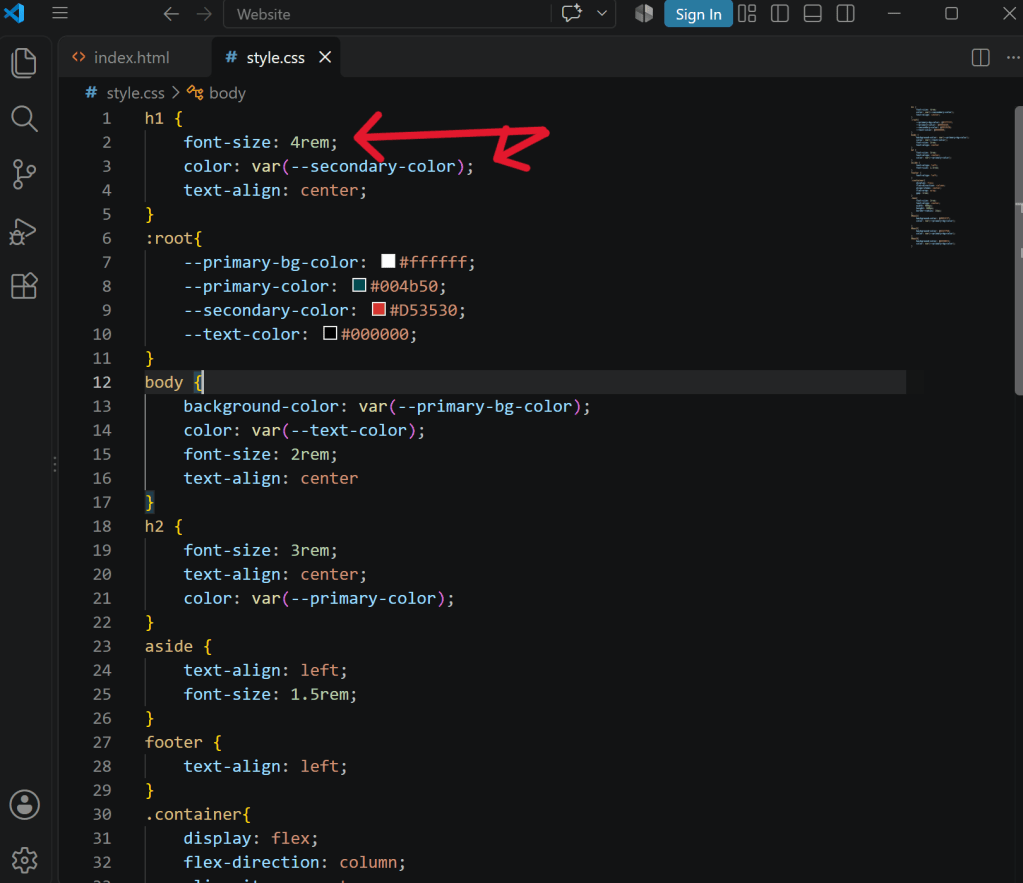
    Screenshot of a CSS document with red arrows pointing to ";" after each item line. It is necessary to include ";" after each item in CSS code otherwise the item will not work.
    Screenshot of my CSS code after I realized I needed to add “;” after each item to get them to apply to my website.

    I really appreciated the use of WebAIM contrast checker in this assignment. None of the original colors I chose passed the contrast checker, but I was able to use the slider function on their website to choose a different shade of the colors I had chosen. This allowed me to increase accessibility on my website without having to spend time searching for new color schemes.

    These last two weeks have taught me a new skill that I honestly wasn’t sure I was capable of. Everything that I learned was new from the program I was using, to the coding language, to the way the design of a website is a separate document from the structure. I was pushed out of my comfort zone and learned that with the right tools and patience, I can create a simple website. I feel more confident moving forward that I will be successful in learning coding.
  • Today I’m going to discuss my first experience building a website using HTML. The intended audience for my website is middle school math teachers who are new to 8th grade standards and need help navigating the basics of rigid transformations. Rigid transformations are one of the main geometry standards for 8th grade math and pave the way for students to understand dilations and then slope. I struggled with understanding these concepts when I started teaching math this year so I thought I would create a resource that could help other teachers in my situation.

    The entire project felt like a big obstacle to overcome for me. While I am determined to learn and grow, I am not very tech savvy. I have never done any coding or website building before, so this was uncovered ground for me. I struggled to understand where to even start, but the step-by-step videos provided helped give me a starting point. Once I understood the pattern of how to layer each section it became easier. It reminded me of creating outlines when writing an essay or research paper and that helped me connect to the process. I also used the HTML elements reference to understand when to use each semantic region and that helped me create each element with intention. One obstacle I encountered was how to add images to the HTML code. I was able to follow the instructions on blackboard, but I kept wondering how to get the images themselves into the code. A quick Google search brought an answer, and I realized that, of course, I needed to add the images to the folder I had created in the coding program and then add the file name to my code.

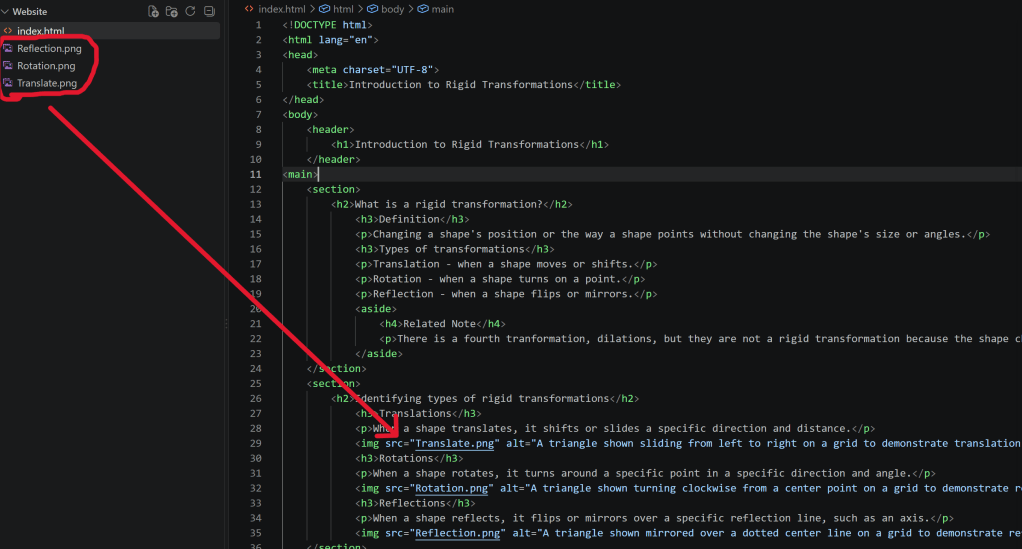
    Screenshot of code for website that shows image files in the website folder on the left and where the image file names are written into the code.

    I appreciate this lesson and the chance to learn the basics of coding. I learned that, like any technical skill, coding cannot be rushed and you need to pay close attention. You need to design with intention and really think about why you are adding each element. I appreciate those who code on a daily basis because there is so much detail and intricacy that goes into coding.

  • 1. What surprised you?

    While I have been excited for the opportunity to learn new methods and tools through this course, making technology-based instructional materials more accessible was not a piece I had thought much about. Not because I am not interested in making instructional materials more accessible, but simply because, in education, we often think about the use of technology itself as being what makes the learning accessible. Of course, this is a fallacy and just like any other teaching method, it is important to be intentional about accessibility when creating any instructional materials. While some web content accessibility guidelines, such as color choice and text size were choices I have thought about in the past, others were new to me. For example, the importance of not only creating headings and labels (WCAG Success Criterion 2.4.6), but also considering whether those headings are navigable and machine-readable was not something I had previously considered. The Minga Installation and Onboarding Guide I created was the first time I had used the headings feature in Microsoft Word. This gave me a new perspective on the importance of using pre-made features in Microsoft Word and that these may be useful beyond convenience. Another feature I had not considered before was creating alt-text for images (WCAG Success Criterion 1.1.1). Before the accessibility lesson, I did not realize that I could create alt-text in Microsoft Word for images and I hadn’t considered the importance of creating alt-text that not only describes an image but describes what the user should do. For example in the Minga Installation and Onboarding Guide artifact I created, it was important to explain what steps were being illustrated by a screenshot instead of focusing on the colors or design of the image. I will be continuing to create alt-text for my images moving forward and being mindful of whether a user who cannot access the image itself would be able to accomplish the same goal as a user who can access the image.

    2. What patterns did you notice in AI-generated alt text?

    I utilized AI-generated alt text as a resource in my Minga Installation and Onboarding Guide artifact and my AI Alt-text Critique blogpost. In the onboarding guide I used the AI generator in Microsoft Word and for the critique I used Google Gemini. Despite using different AI generators for each artifact, I saw very similar patterns to the AI-generated text. The AI-generators were excellent at describing what an image looked like and explaining a page layout in words that I would not have come up with on my own. For example, when asked to generate alt-text for an image of a GoGuardian dashboard with a variety of pages a user can navigate, Google Gemini described it as a “left-hand navigation menu” which was a descriptive, yet simple to follow, explanation of the menu. When using Microsoft Office’s AI generated alt text, it did a great job describing how the Apple Safari web browser icon looks: “Icon featuring a circular compass design with a blue gradient background and white tick marks around the edge.” However, neither AI software was able to effectively explain the purpose of the image within the document. For example, in the GoGuardian dashboard screenshot, the reason the “Classroom” button was circled in the left-hand navigation menu was to cue the user to click on the button to get to the Classroom dashboard page, but the AI-generated text did not provide that information. 

    3. When should AI be used for alt text?

    The way I view AI use for alt-text is similar to the way I view AI use in general. AI can be a very useful resource when creating web-based materials. It can create prose efficiently and stream-line text organization and descriptive based writing. However, I do not think AI created material should ever be taken as flawless and therefore should always be reviewed by a human before being finalized. The patterns I describe in the question above illustrate the need for caution and review when using AI for alt text. If I had used the AI generated alt-text for my images without revisions, the alt-text for my artifacts would not have provided the intended information for the user. For example, the alt-text for my screenshot of the “Scenes” dashboard in GoGuardian in my AI alt-text critique blogpost, described the page as having two cards that offer options to configure website access with “Allowed Website List” and “Blocked Website List”. However, it missed an explanation of the features found in those options. Without this information, the user cannot make an informed decision about which scene they are needing to create. Without revision, the alt-text for the image would not have created better access for the user. AI generated alt-text is very useful when an image is included just for the picture it provides and a description of the image is needed. However, it should not be used when an image needs to prompt a user to complete a task. 

    4. How will this change your future design work?

    The accessibility lesson was very eye-opening for me. I would like to challenge myself to consider the Web Content Accessibility Guidelines (WCAG) when creating artifacts. This lesson definitely showed me that I should not assume an artifact is accessible and instead need to use resources such as Microsoft Word’s accessibility check, Web Aim contrast checker, or free web accessibility evaluation tools, such as Wave to ensure I am creating tools that can be accessed by everyone. I will do my best to remove unnecessary barriers so that all learners can succeed and grow.

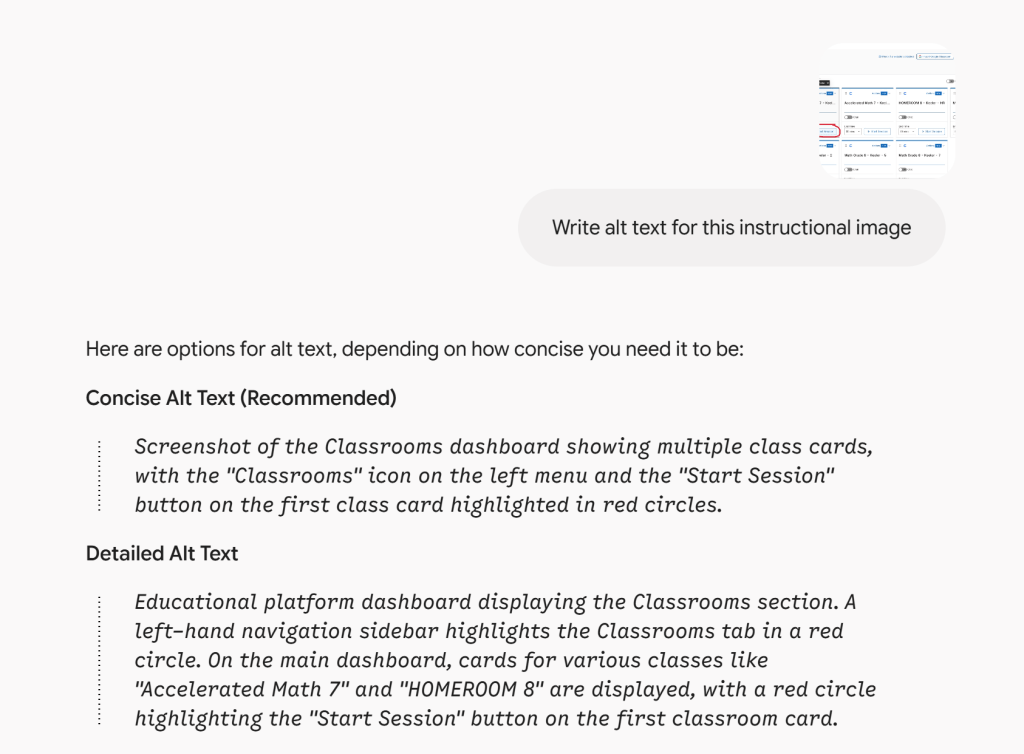
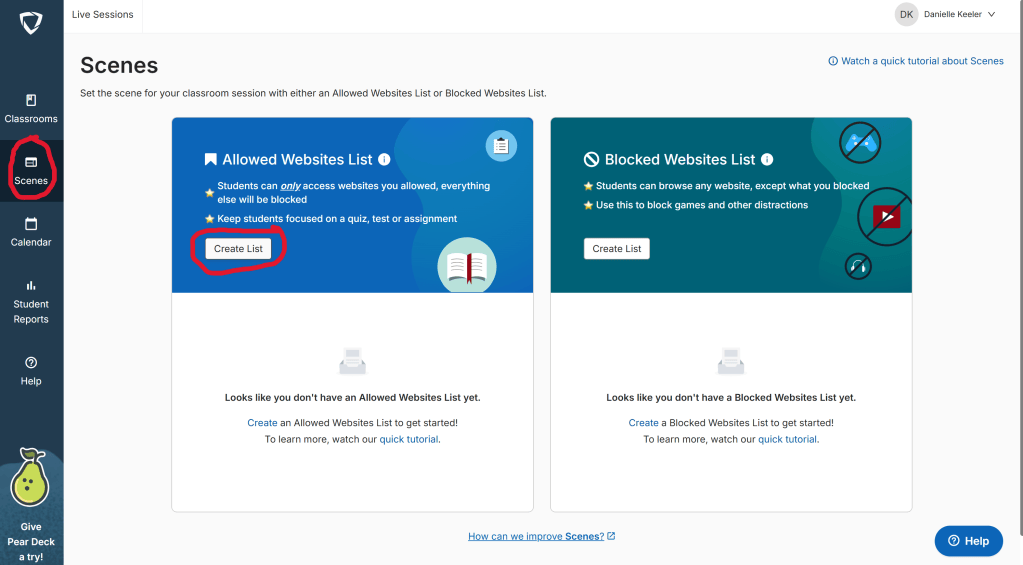
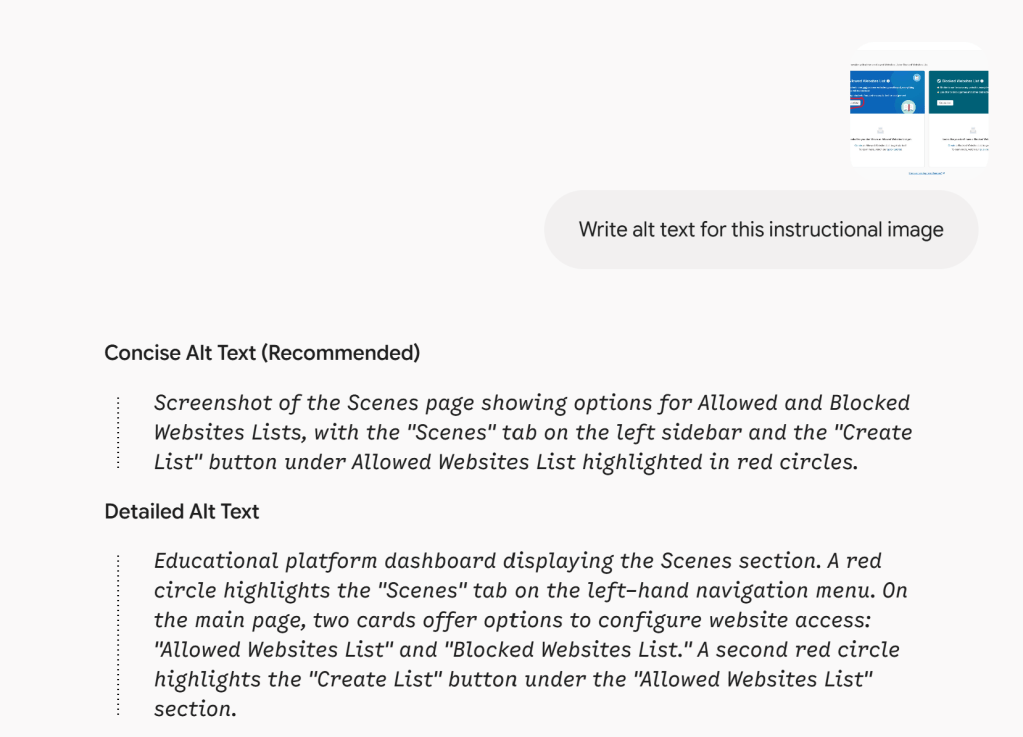
  • For my critique of AI alt-text, I used screenshots for navigating the menu of the software tool GoGuardian. This educational tool allows teachers to monitor student’s Chromebook use during instructional time. I prompted the AI tool, Gemini, to write alt-text for each instructional image below and then rewrote and critiqued its reply.

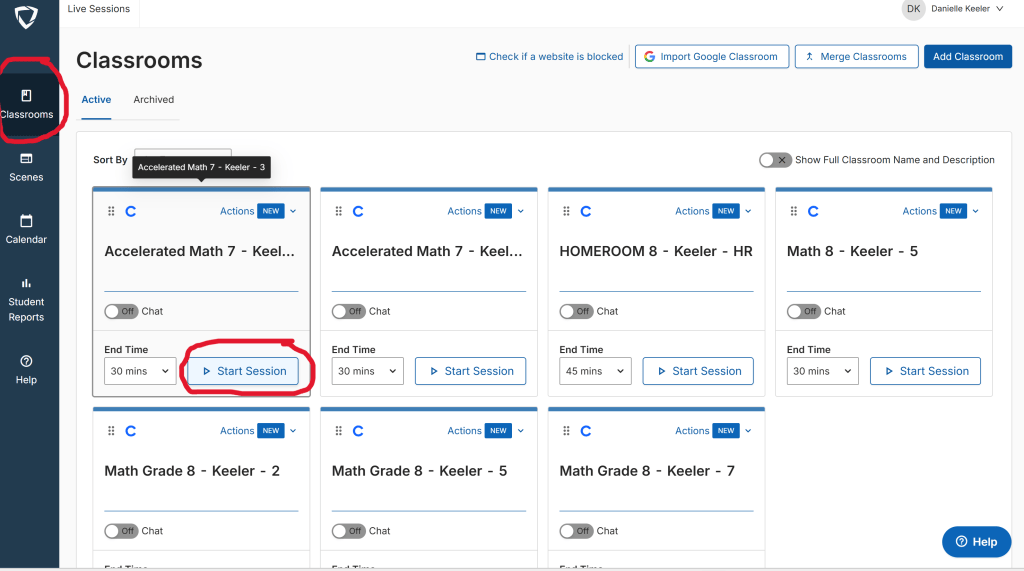
    Revised alt-text: Screenshot of GoGuardian Classrooms dashboard showing teacher’s classroom session options using the teacher’s previously set up Google Classrooms. The title of each session is the same as the teacher’s Google Classrooms. To get to the Classrooms dashboard, click on the Classrooms button on the left-hand navigation sidebar which is circled in red. To start a session, click on the start session button under one of the Classroom sessions in the dashboard. The first “start session” button is circled in red.

    Critique: Gemini did a good job explaining what is directly seen on the page without unnecessary description. However, it was not able to give the instructional steps that the user would need to accomplish the task, such as why certain areas of the screenshot were circled.

    Revised alt-text: Screenshot of GoGuardian Scenes dashboard with two options to configure website access: “Allowed Websites List” and “Blocked Websites List.” The “Allowed Websites List” option allows teachers to choose which websites students in the session can access and will block all websites not on the list. The “Blocked Websites List” option allows teachers to block websites so students are unable to access them during the session but can access any website not on the list. To get to the Scenes dashboard, click on the second button “Scenes” on the left-hand navigation menu which is circled in red. To choose to make a list, click on the “create a list” button under “Allowed Websites List” or “Blocked Websites List”.

    Critique: Gemini does a good job explaining where items are in user-friendly terms such as “left-hand navigation menu”. This allows me to better structure my alt-text descriptions. However, it is unable to give the necessary context the user needs to actually use the instructional image as a guide, such as what “Allowed Websites List” and “Block Websites List” mean and how to use them.

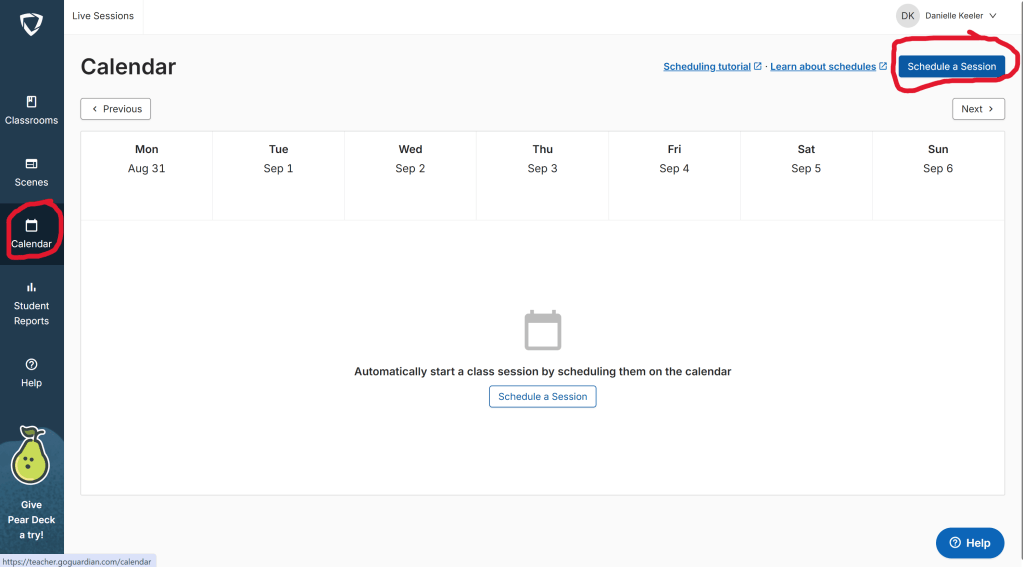
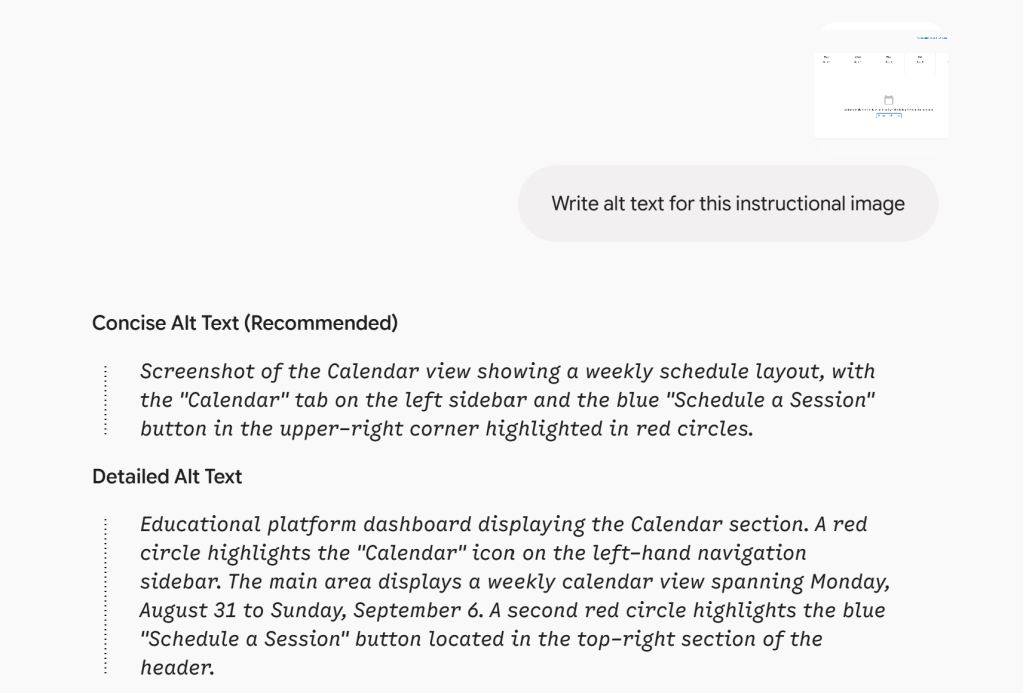
    Revised alt-text: Screenshot of GoGuardian Calendar dashboard which shows a weekly schedule layout. This dashboard allows a teacher to schedule a GoGuardian session during a specific date and time. To get to the Calendar dashboard, click on the third button “Calendar” on the left-hand navigation sidebar which is circled in red. To schedule a session, click on the “Schedule a Session” button in the top-right section of the header which is circled in red.

    Critique: Gemini does a good job of explaining where a highlighted section is on the image, such as “located in the top-right section of the header”. I would not have thought to call that part of the screen a “header” but it definitely would help a user navigate the area of the screen. I also like that it gives both a concise and detailed version of alt-text so you can choose which is more helpful. However, it gives unnecessary details such as exactly what days are displayed which is not beneficial for the purpose of the image.

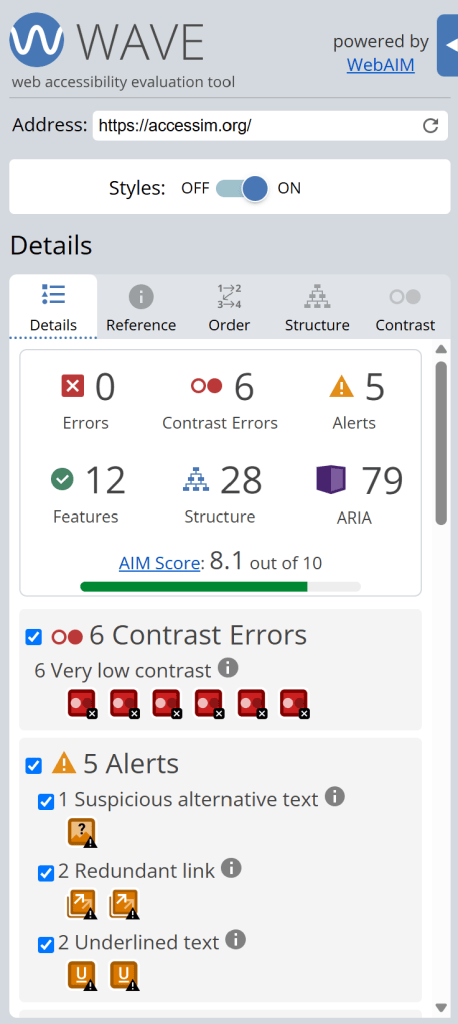
  • Today I am exploring Wave, a free accessibility scanner. I chose the website for Illustrative Mathematics 360 (https://accessim.org/) to run through Wave. Illustrative Mathematics 360 is a middle school math curriculum that is used in the district where I teach. This is a website that I use on a daily basis as a 7th and 8th grade math teacher. It is not only used by public educators, but also may be used by a parent or tutor who is trying to provide high quality learning materials for students. Accessibility is incredibly important for a K12 math curriculum resource because all students deserve a quality educational experience.

    The image below shows the flagged errors that were found on the website after it was run through Wave.

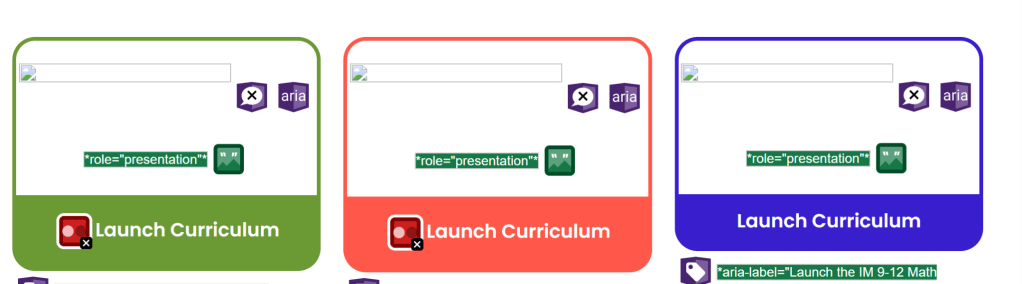
    Wave flagged multiple contrast errors on the website. These were areas of the website where there was very low contrast between text and background colors. The image below is an example of some of the low contrast areas of the website.

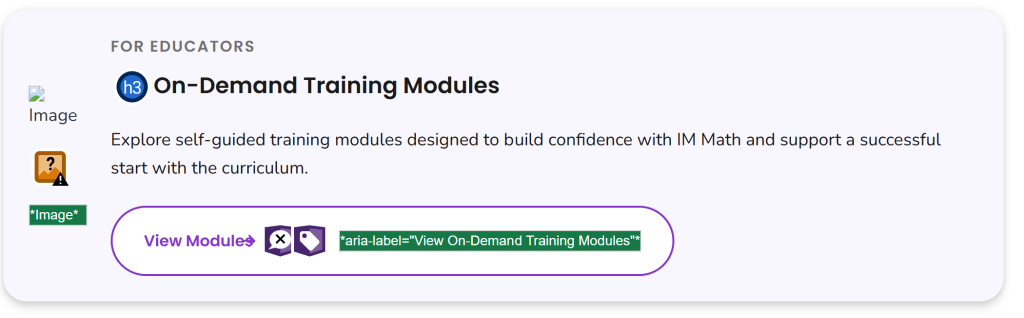
    Wave also found suspicious alternative text which is shown by the image below. The alternative text did not provide the same content conveyed by the image.

    Wave found redundant links in the top section of the website as shown in the image below. These are links that go to the same location and require additional navigation or repetition for a user.

    I was surprised by the contrast errors on a high quality instructional website like IM 360. Difficulty with contrast is a struggle for many learners and it seems like a relatively easy accessibility error to catch and fix before launching a website. 

    I am curious how many businesses, schools and educational technology companies use a resource like Wave to assess the accessibility of their websites and materials. I am also interested in learning more about how Wave functions and how to navigate the error messages and code language.

  • Hi! I’m Danielle Keeler from Rogers, Arkansas and I am excited to learn and grow this semester. I am currently a middle level math teacher and fell in love with developing curriculum that is engaging and helps learners grow. I am excited for this course to stretch my knowledge and help me discover how to use technology and AI to enhance educational experiences. I am on the K12 track and an focusing on classroom curriculum development.