For my critique of AI alt-text, I used screenshots for navigating the menu of the software tool GoGuardian. This educational tool allows teachers to monitor student’s Chromebook use during instructional time. I prompted the AI tool, Gemini, to write alt-text for each instructional image below and then rewrote and critiqued its reply.
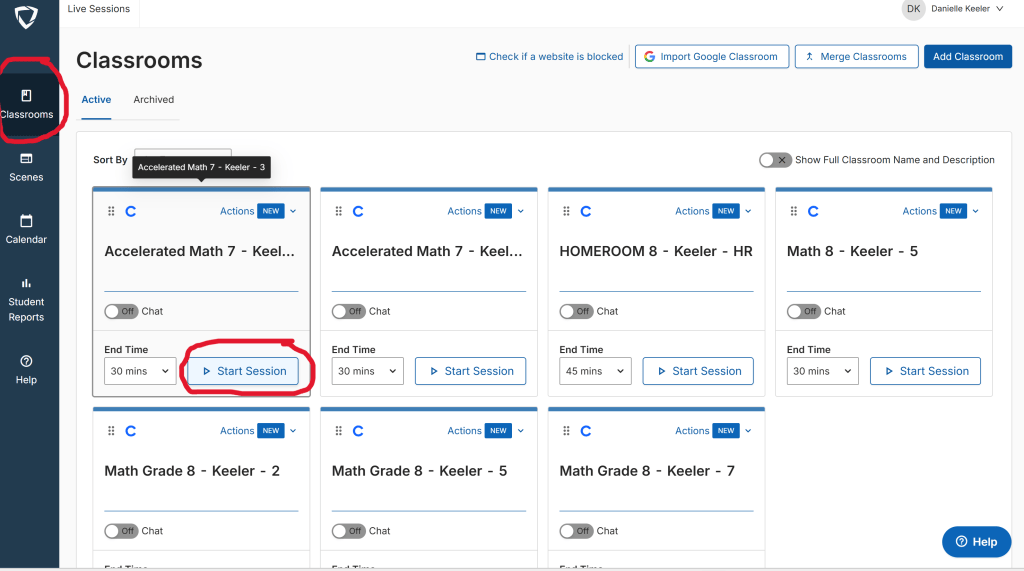
Revised alt-text: Screenshot of GoGuardian Classrooms dashboard showing teacher’s classroom session options using the teacher’s previously set up Google Classrooms. The title of each session is the same as the teacher’s Google Classrooms. To get to the Classrooms dashboard, click on the Classrooms button on the left-hand navigation sidebar which is circled in red. To start a session, click on the start session button under one of the Classroom sessions in the dashboard. The first “start session” button is circled in red.
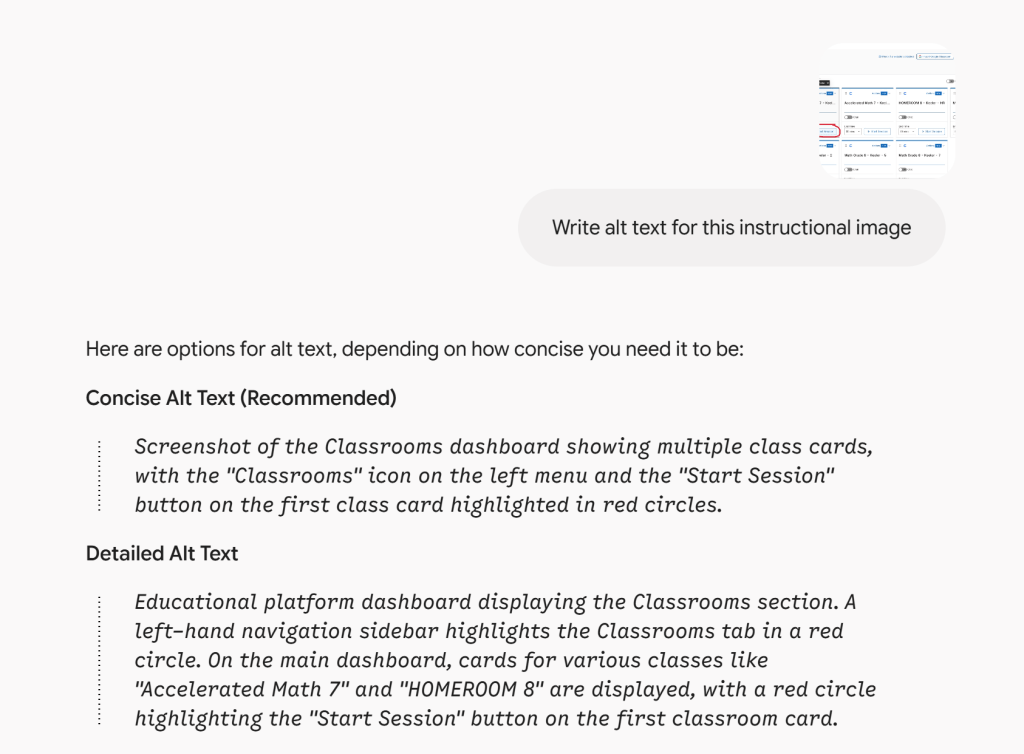
Critique: Gemini did a good job explaining what is directly seen on the page without unnecessary description. However, it was not able to give the instructional steps that the user would need to accomplish the task, such as why certain areas of the screenshot were circled.
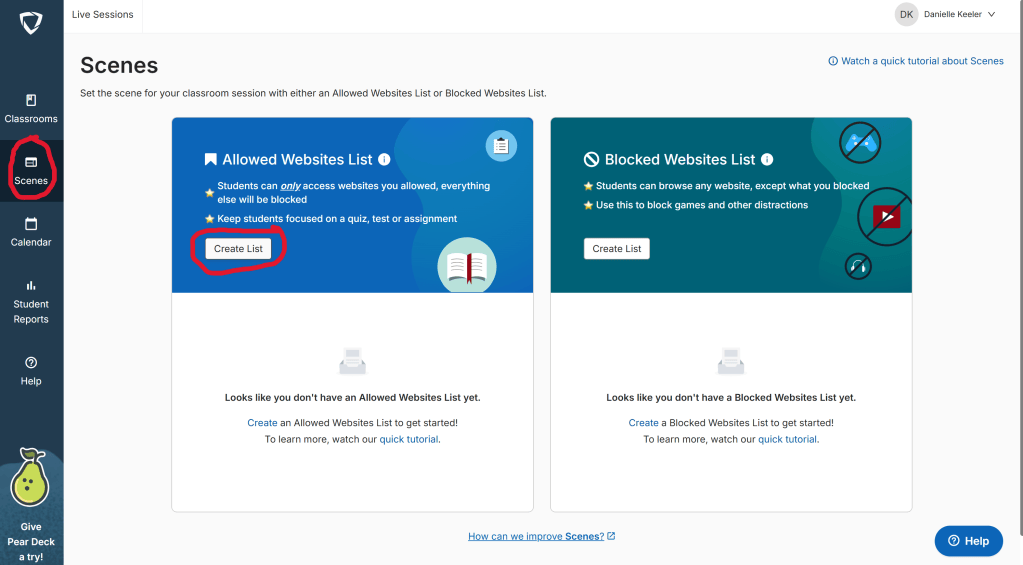
Revised alt-text: Screenshot of GoGuardian Scenes dashboard with two options to configure website access: “Allowed Websites List” and “Blocked Websites List.” The “Allowed Websites List” option allows teachers to choose which websites students in the session can access and will block all websites not on the list. The “Blocked Websites List” option allows teachers to block websites so students are unable to access them during the session but can access any website not on the list. To get to the Scenes dashboard, click on the second button “Scenes” on the left-hand navigation menu which is circled in red. To choose to make a list, click on the “create a list” button under “Allowed Websites List” or “Blocked Websites List”.
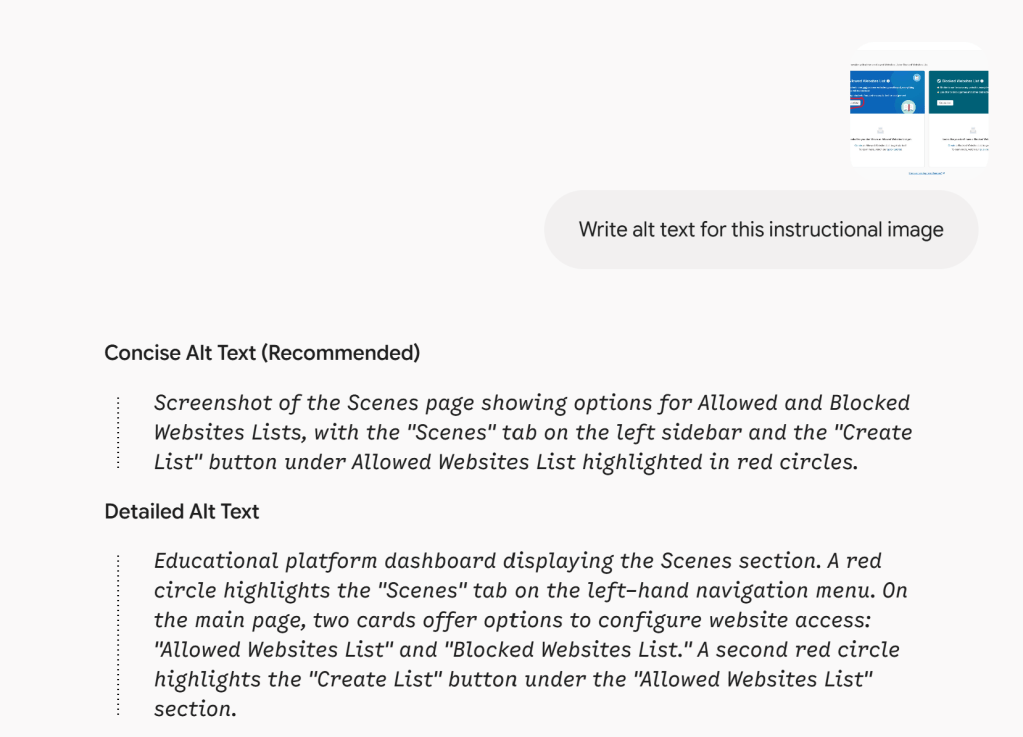
Critique: Gemini does a good job explaining where items are in user-friendly terms such as “left-hand navigation menu”. This allows me to better structure my alt-text descriptions. However, it is unable to give the necessary context the user needs to actually use the instructional image as a guide, such as what “Allowed Websites List” and “Block Websites List” mean and how to use them.
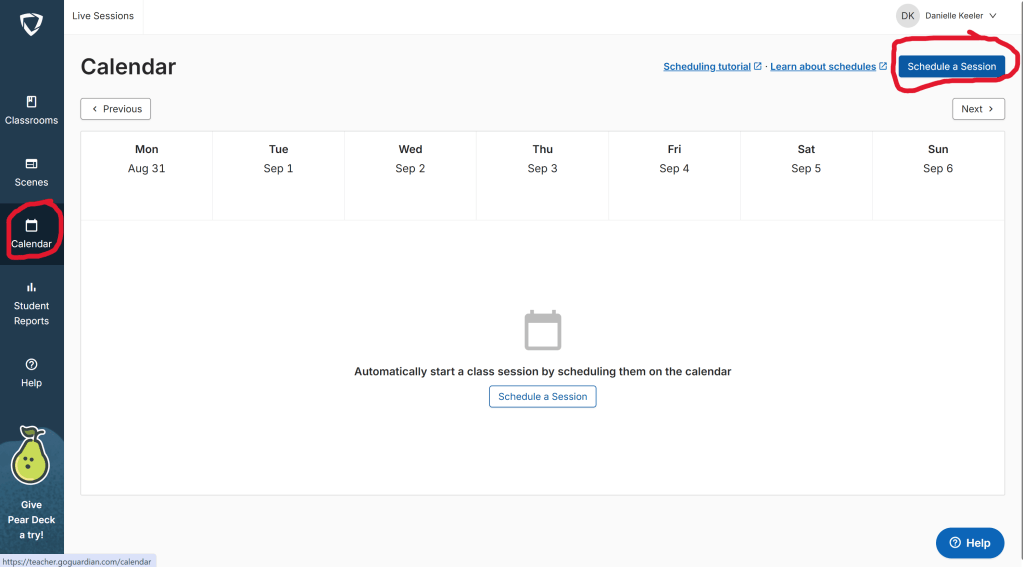
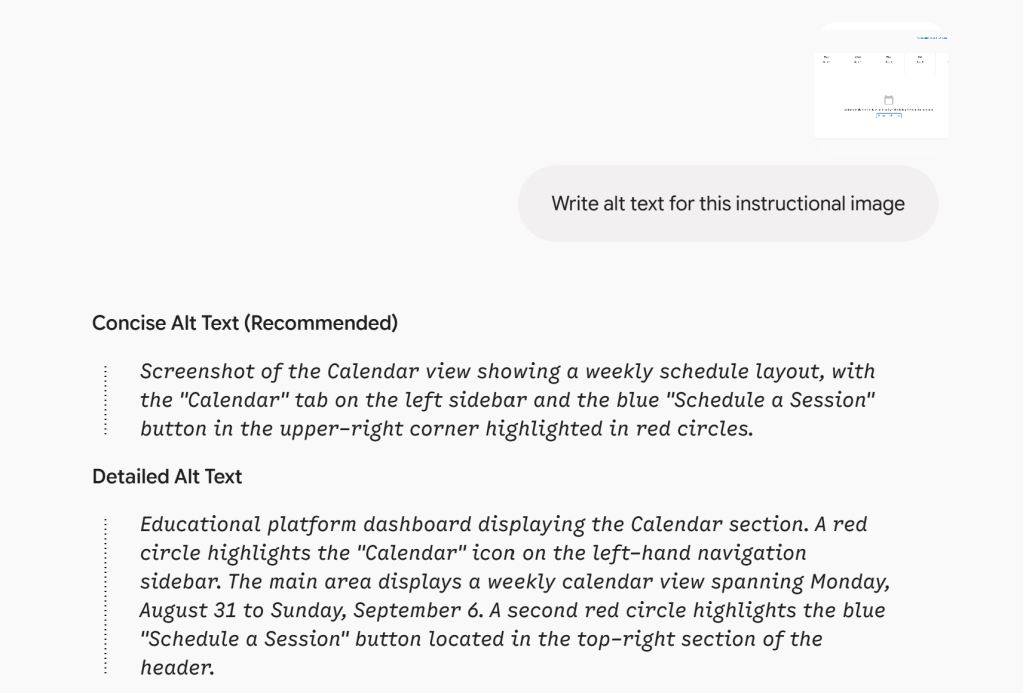
Revised alt-text: Screenshot of GoGuardian Calendar dashboard which shows a weekly schedule layout. This dashboard allows a teacher to schedule a GoGuardian session during a specific date and time. To get to the Calendar dashboard, click on the third button “Calendar” on the left-hand navigation sidebar which is circled in red. To schedule a session, click on the “Schedule a Session” button in the top-right section of the header which is circled in red.
Critique: Gemini does a good job of explaining where a highlighted section is on the image, such as “located in the top-right section of the header”. I would not have thought to call that part of the screen a “header” but it definitely would help a user navigate the area of the screen. I also like that it gives both a concise and detailed version of alt-text so you can choose which is more helpful. However, it gives unnecessary details such as exactly what days are displayed which is not beneficial for the purpose of the image.


Leave a Reply